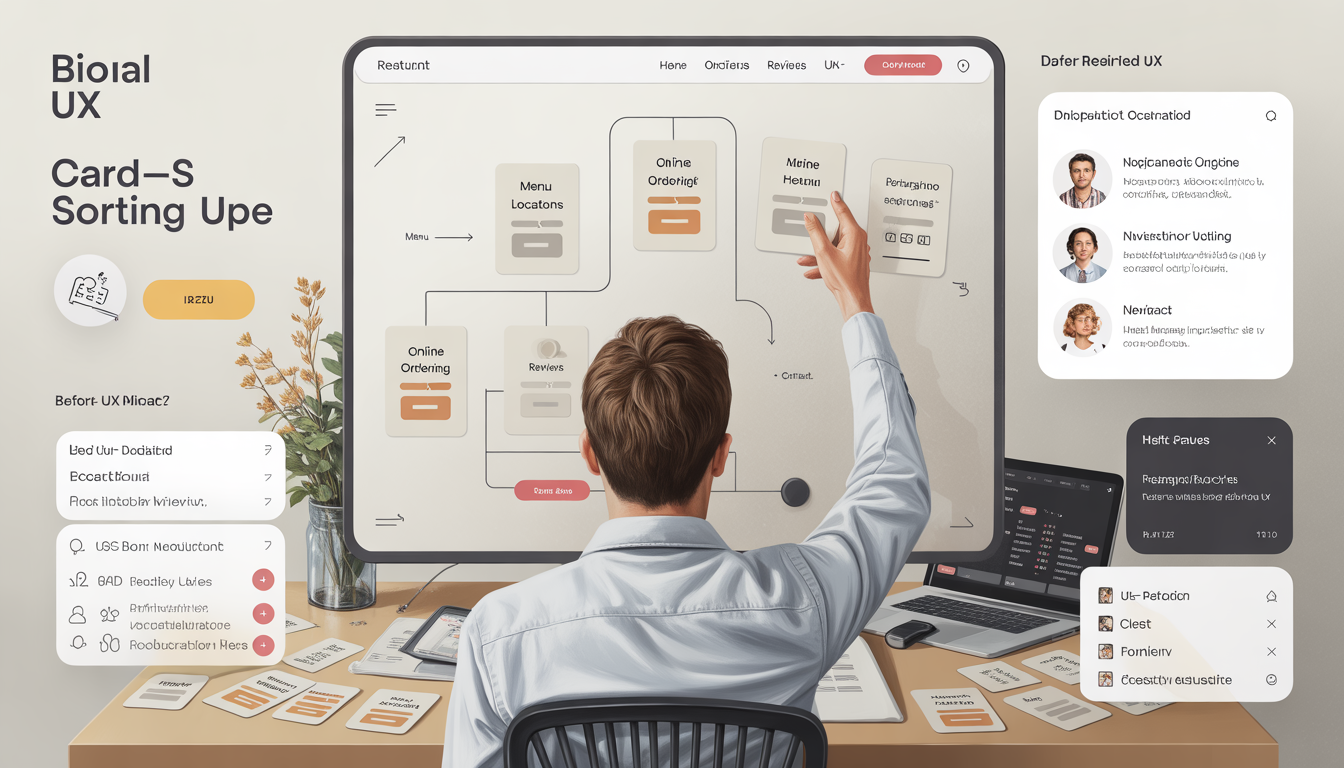
Card Sorting: The UX Technique That Boosted Usage by 40%
Suppose you are going to revamp a restaurant's website. You have menu items, location details, social links, hours of operation, and online ordering features. Where does everything go? How will you organize it so that customers can quickly find what they need?
This is where card sorting becomes your secret weapon.
Card sorting is a user research technique that reveals how real people naturally organize information. Instead of guessing what works, you let users show you, and the results often surprise even seasoned designers.
What is Card Sorting?
Think of card sorting as asking someone to organize a cluttered kitchen drawer: you hand them utensils, gadgets, and tools, and then observe how they naturally group things.
In UX design, card sorting works in precisely the same way:
You give users cards with website features, menu items, or content topics written on them. They sort these cards into groups that make sense to them, then label each group. The patterns that emerge tell you exactly how to structure your navigation.
Why It Matters
A budgeting app had features scattered everywhere. Users couldn't find basic functions like "Track Expenses" or "Set Budget Goals."
The result? Feature usage increased by 40%. After card sorting sessions, the team discovered people naturally grouped features into: "My Money" (tracking of income, balance), "My Spending" (expenses, transactions), "My Goals" (budgets, savings), and "Reports" (analytics, insights). Support tickets dropped by 65%.
The Three Types of Card Sorting
1. Open Card Sorting (Starting From Scratch)
Users create their own groups and labels from scratch with no predefined categories.
Real Example: In a music app study, participants sorted songs by emotion rather than genre, placing them into categories like "Pump Up Songs," "Chill Vibes," "Focus Music," and "Party Playlist." It showed that people organize music by how it makes them feel and when they'd use it.
- New website or application design
- Complete navigation redesign
- Understanding user mental models
Best for:
2. Closed Card Sorting (Testing Your Structure)
You provide predefined categories, and the users assign cards to existing groups. Real Example: A restaurant website had categories: "Menu," "Location," "About Us," "Contact," and "Order Online." Users were continually placing "phone number" in both "Contact" AND "Location"-indicating it needed to be in multiple places.
- Validating existing navigation
- Testing proposed categories
- Working within constraints
Best for:
3. Hybrid Card Sorting (Best of Both)
You provide main categories, but let the users create new ones if needed. Real Example: In one budgeting application, there were "Tracking," "Planning," and "Reports," but users were allowed to add categories.
They added "Alerts & Notifications" with features they wanted to include, like "Bill reminders" and "Overspending warnings." This is something that the designers had not considered.
- Smoothing problem structures
- Testing enhancements to existing navigation
Best for:
How to Conduct Card Sorting: Step-by-Step
Step 1: Define Your Goal
Get crystal clear on your objective. Are you organizing the main website navigation? Restructuring a mobile app menu? Categorizing a product catalog?
Example: "Organize restaurant information so that customers can find menu, location, and ordering options within 2 clicks."
Step 2: Create Your Cards (30-60 Items)
List all content, features, or pages you need to organize. Write each on a separate card.
Restaurant website example:
- Restaurant Name and Logo
- Telephone number and address
- Google Maps integration
- Business hours
- Menu categories: Appetizers, Mains, Desserts, Drinks
- Online ordering button
- Table reservation
- Social media links
- Customer reviews
- Dietary choices
- Use simple language that is used in everyday life.
- Be specific ("Track Daily Expenses" not "Tracking")
- Keep cards concise (3-5 words)
- Include tricky items that might fit into multiple places.
Critical rules:
Pro tip: Keep card sorts to 30-60 cards maximum for optimal engagement and accurate results.
Step 3: Recruit Real Users (Not Your Team)
Don't use colleagues or internal team members. They know too much—company jargon, back-end structure, business logic. Their mental models are contaminated.
- 15-20 real users or potential customers
- People who represent your target audience
- Mix of experience levels
Recruit:
Step 4: Choose Your Method
Physical Card Sorting (In-Person)
Materials: Index cards, large table, markers
Pros: Natural, can read body language, easy to collaborate
Digital Card Sorting (Online)
Tools: OptimalSort, Miro, UserZoom
Advantages: Remote recruitment, automated analysis, geographic diversity
Pro Tip: On critical projects, do 5-8 in-person sessions first to get deep insights, then 15-20 remote sessions for scale and validation.
Step 5: Run the Session
Your introduction:
"Thank you for helping us. We're organizing [website/app], and we need your perspective. Please group these cards in a way that makes sense to YOU.
There are no right or wrong answers-we want to understand how you naturally think about this information."
During the session,
- Encourage thinking aloud: "Tell me why you're putting those together".
- Keep quiet and observe
- Note hesitations or struggles
- Let them change their mind.
DO:
Ask: "What would you call this group?"
- Explain what the cards mean
- Rush participants
- Express approval or disappointment
- Defend your current structure
- Lead them to "right" answers
DON'T:
Key insight: When participants hesitate, this is valuable data. That card label is ambiguous, could go in several categories, or doesn't fit within your structure at all.
Step 6: Observe patterns
Watch out for:
Consistent groupings: if 80% put "Track Expenses" and "View Transactions" together, that's a strong signal.
Split decisions: If half put "Bill Reminders" with "Alerts" and half with "Budget Tools," make it accessible from both places.
Surprising combinations: Users grouped "Share Budget" and "Export Data" together under "Sharing Tools." The original design had them in completely different sections.
Category labels: Users created labels such as "My Money In" for income, "My Money Out" for expenses, and "My Money Goals" for savings—these were actual navigation names.
- Analyzing Your Results
- Create a Similarity Matrix
- Shows how often cards were grouped.
Interpretation:
- >60% agreement: Strong consensus—definitely group these items together
- 40-60% agreement: Moderate consensus—likely group, but validate through additional testing
- Below 40%: Low consensus—consider keeping items separate or restructuring
Agreement thresholds are project-dependent. Some researchers use a 10% minimum threshold to identify meaningful patterns, while others focus on 50%+ for strong groupings.
Category Labels:
1. Consistency: If 12 of 15 people said "About Us," but 3 said "Our Story," use "About Us"
Clarity: "Stuff" isn't helpful. "Restaurant Info" is clear.
User language versus company jargon:
Users said: "Order Food"
The company said: "E-commerce Platform Integration"
Winner: Use "Order Food"
Expert insight: "Naming isn't just the UI designer's job. It requires collaboration with content writers, developers, and understanding what users call things."
Handle Difficult Cases:
Cards that go anywhere: Some things really do belong in multiple places. In the restaurant example, "Phone number" showed up under "Contact," under "Location," and under "Header."
Solution: Place it in several locations or make it global.
Consider the restrictions on the platform.
Mobile applications: Very limited screen space; 5-7 maximum top-level categories, simpler structure
Desktop websites: More complex mega menus, multiple areas of navigation, more visual space
Expert note: "You have to consider what platform you're designing for." Card sorting will uncover optimum organization, but you must accommodate the platform realities.
Real Examples from Expert Practice
The Restaurant Website
Cards included: Business Info, contact details, Google Maps integration, menu sections, online ordering, hours, social media links, and reviews.
User sorting revealed:
Contact information should be found everywhere: header, footer, and contact page. Menu and online ordering go together.
Social media in the footer, not competing with primary actions
Google Maps is essential on the location page
Final structure:
Home (Welcome, featured items, quick order)
Menu - with order buttons integrated
Location (map, address, directions, hours, phone)
About- story, chef, values
Contact Form, phone, email, social networking
- See My Money - balance, accounts, income
- Track My Spending (expenses, transactions, categories)
- Plan Ahead: budgets, goals, bill reminders
- Understand My Habits: Reports, Analytics, Insights
- Share & Export: share budgets, export data, reports
The Budgeting App
User sorting revealed surprising insights:
Users created categories based on actions rather than features:
Key learning: The Original app was organized by feature type. Users wanted organization by what they're trying to accomplish.
Music Sorting by Emotion
"Get Pumped" (workout, motivation)
"Focus Flow" (studying, working)
"Chill & Relax" (unwind, meditation)
"Party Vibes" (social, dancing)
The lesson: People don't think in technical categories. They think: "What do I want to feel?" or "What am I doing right now?"
Common Mistakes to Avoid
1. Testing with Your Team
Problem: Colleagues know too much insider information. Fix: Always recruit real users.
2. Too Many Cards
Problem: Participants get exhausted after 60+ cards.
Solution: Keep card sorts to 30-50 cards maximum for optimal engagement and accurate results.
Problem: Users cannot sort what they do not understand. Example: Bad: “System Admin” | Good: “Change Account Settings” Fix: Write in plain language. Test labels first.
4. Ignoring Constraints of the Platform
Problem: Users create 12 categories, but the mobile can only fit 5. Fix: Use card sorting to create an informed hierarchy, then adapt to platform realities.
5. Results as the Absolute Truth
Critical insight: “Card sorting shows how users organize mentally, but you still need to test if they can actually find things.” Fix: Follow up with tree testing, usability testing, and analytics.
Connecting Card Sorting to Prototyping
Card sorting typically occurs even before detailed design begins. It’s part of the research and information-architecture phase, which usually precedes both design. So it occurs prior to designing.
Design thinking process:
Research & Empathize → Card sorting here
Define and analyze the results
Ideate (Create navigation)
Prototype: build clickable designs.
Test (validate with users)
Expert explanation: "Prototypes rapidly test ideas before building the final product. Card sorting informs the navigation structure of what you prototype.
After card sorting, create simple prototypes-paper sketches, PowerPoint slides, or digital wireframes to test whether users can actually find things.
Learn more about choosing the best web development company that can bring your user-informed design to life.
- Better user experience = lower bounce rates
- A clear hierarchy means search engines understand the structure.
- Logical grouping = easier internal linking
- User-friendly labels match the search intent
SEO Benefits of Proper Card Sorting
Example: A restaurant that sorts "Menu + Order Online" together performs better in search because users find and use these features faster, sending good signals back to search engines.
Conclusion: Create Navigation That Makes Sense
Card sorting bridges the gap between how YOU think your website should be organized and how USERS actually want to find information.
Key takeaways:
Test with real users - not your team
Keep it simple: 30-60 minutes
Neutral - Don't lead participants
Look for patterns - 80%+ agreement reveals strong groupings
User language: Their labels become your navigation
Validate with testing - Card sorting informs, testing confirms
Consider constraints: adapt to mobile/desktop realities
The budgeting app organized by user goals increased usage by 40%. The restaurant website puts contact info everywhere, perfectly matched to user expectations. These weren't guesses—they were insights from watching real people organize information naturally.
Ready to Start?
Define your goal clearly
Produce 30-60 cards in simple language
Recruit 15-20 real users
Physical or Digital Method: Choose
Neutral sessions
Analyze patterns 80%+ agreement
Build prototypes and test